A dual-band router broadcasts Wi-Fi on two radio bands: 2.4 GHz and 5 GHz. It gives compatible devices two ways to connect, so they can favor coverage or performance based on where they are and what they support. In general, 2.4 GHz reaches farther and handles barriers better, while 5 GHz can offer higher data rates over a shorter distance and is usually less crowded (NETGEAR).
The direct answer is that a dual-band router is still the sensible choice for many homes. It is not a double-speed switch, though. The right band, router location, device capability, and Internet plan all matter. Tri-band or mesh Wi-Fi is worth considering only when it addresses a specific capacity or coverage problem.
Key Takeaways
- Dual-band means a router can provide both 2.4 GHz and 5 GHz Wi-Fi.
- Use 5 GHz when it stays reliable where you need it; use 2.4 GHz for farther-away locations, more barriers, or devices that support only that band.
- A single Wi-Fi name is usually the least confusing setup. Split band names are most useful for short-term testing or a device setup problem.
- Do not replace a router until you separate a Wi-Fi coverage problem from an Internet-service or single-device problem.
Dual-band gives your devices two connection choices
The dual-band label describes what the router can offer, not what every device can use. A phone or laptop that supports 5 GHz can use that band, but a 2.4 GHz-only smart plug, camera, or sensor cannot suddenly use 5 GHz because the router supports both. On a shared 2.4 GHz and 5 GHz network, Google says hardware limited to 2.4 GHz joins that band automatically (Google Nest Help).
That distinction matters when shopping or troubleshooting. A router’s band support does not remove the limits of the device at the other end, nor does it guarantee that a device combines the two bands for one faster connection. Treat the bands as options, then choose the one that gives the device a stable connection where it is used.
| What changes | 2.4 GHz | 5 GHz |
|---|---|---|
| Potential data rate | Lower data rates | Higher data rates |
| Reach through a home | Broader coverage and better ability to reach through solid barriers | Shorter coverage and more weakening from walls and floors |
| Crowding | More likely to be crowded by nearby wireless activity and some household equipment | Typically less crowded because fewer devices use it |
| Good first choice | Farther rooms, several barriers, and 2.4 GHz-only devices | Recent phones, laptops, TVs, and consoles that are close enough for a reliable signal |
These are frequency tradeoffs, not performance promises. Layout, building materials, nearby networks, the router, and the client device can all change the result. NETGEAR’s frequency comparison is a useful summary of the range, barrier, speed, and congestion differences behind the table (NETGEAR). If 5 GHz is fast and steady in a room, it is often the better choice there. If it drops out behind several walls, a dependable 2.4 GHz connection may be more useful than a faster but inconsistent 5 GHz one.
Start with one Wi-Fi name, then split bands only when it helps
For most households, give 2.4 GHz and 5 GHz the same Wi-Fi name, also called an SSID. Apple recommends using one unique, case-sensitive SSID across every band and access point in a network. It specifically cautions against assigning different names to the 2.4 GHz, 5 GHz, and 6 GHz bands because doing so can impair reliable connections (Apple Support).
With one name, a router or mesh system can use band steering. This is the process of guiding a device toward a suitable band without asking you to choose a separate network name. It is not a strict command from the router: Google explains that the device still selects based on factors such as compatibility, signal, and proximity (Google Nest Help). That is why a phone may remain on 2.4 GHz in one part of a home even when you would prefer 5 GHz.
Separate names, such as Home-2.4 and Home-5, are most useful as a diagnostic tool. They let you compare the two bands in the same location or make a 2.4 GHz-only setup less ambiguous. They do not improve the radio signal by themselves. If you split the names temporarily, note the original settings and return to a simpler shared-name setup once the problem is resolved, unless the device maker instructs otherwise.
Keep 2.4 GHz available for smart-home devices
Some smart plugs, cameras, bulbs, and other connected-home products support only 2.4 GHz. That does not make a shared dual-band network incompatible. As noted above, a 2.4 GHz-only device can join the 2.4 GHz side automatically when both bands share a name (Google Nest Help).
The sticking point is often setup. If a product’s instructions say your phone must be on 2.4 GHz during onboarding, follow the product maker’s directions first. Google describes two possible approaches for its own smart-home setup: use a phone’s band-selection option, if available, or move farther from the router or point until the phone changes to 2.4 GHz (Google Nest Help). A router that offers a temporary separate 2.4 GHz name can also make this step easier.
Before changing router settings, use this short checklist:
- Confirm the product really supports only 2.4 GHz and check its setup instructions.
- Make sure the router’s 2.4 GHz band is enabled.
- Put the phone on 2.4 GHz only if the setup directions require it, then complete setup near the router if possible.
- Avoid permanently disabling 2.4 GHz when your home relies on 2.4 GHz-only devices.
When a dual-band router is enough, and when it is not
A dual-band router is usually enough when it covers the rooms you use, your main performance-sensitive devices hold a reliable 5 GHz signal, and your 2.4 GHz-only devices can connect. It can also be enough for a busy home if the slowdowns disappear after better placement, a band change, or removal of a local interference issue.
Your Internet plan should be part of the decision. Wi-Fi is only one part of the path between a device and the Internet. A faster router cannot raise an Internet download above the speed your service plan and incoming connection provide. If a wired test or a test beside the router is slow, changing from 2.4 GHz to 5 GHz will not fix the underlying service, modem, or provider issue. Conversely, if service is fast beside the router but poor in a back bedroom, coverage is the more likely concern.
Tri-band is not a mandatory upgrade from dual-band. It adds a third radio band, but the exact arrangement matters. For example, Google lists the Nest Wifi Pro router as tri-band with 2.4 GHz, 5 GHz, and 6 GHz, while its earlier Nest Wifi router is simultaneous dual-band with 2.4 GHz and 5 GHz (Google Nest Help). Check the specifications of any tri-band model rather than assuming every third band works the same way.
Consider tri-band only when you can name the problem it is meant to solve, such as persistent contention among compatible devices despite good router placement or a need for a particular additional band in a mesh system. It will not help a 2.4 GHz-only plug use 5 GHz or 6 GHz, and it will not compensate for an inadequate Internet plan.
Mesh is primarily a coverage decision
A mesh system can be more useful than a more expensive single router when the real issue is distance, a difficult layout, or a separate floor. Google advises choosing the number of mesh points based on home area, layout, building materials, and nearby interference. It also warns not to place a point in the dead zone itself. Put it between the weak area and an existing mesh device so it has a usable connection to relay (Google Nest Help).
As a starting point, Google suggests placing mesh devices about two or three rooms apart, then adjusting for the home. Points placed high on shelving can work better than ones hidden low behind furniture, and thick brick or concrete walls can weaken a signal (Google Nest Help). Try improving placement before deciding that a new system is necessary. A mesh kit can extend coverage, but it cannot correct slow service arriving from the provider.
Troubleshoot before you buy anything
Use this sequence to identify the bottleneck instead of guessing based on a router label:
- Define the scope. Check whether the problem affects one device, one room, or every device. Try a second device in the same spot before changing settings.
- Compare close and far. Run the same basic speed test or task near the router and in the problem area. A large location-based difference points toward Wi-Fi coverage or interference.
- Separate Wi-Fi from Internet service. If practical, compare with a wired device or test next to the router. If results are poor there too, restart the modem and router using the equipment maker’s instructions, then contact the Internet provider if the problem persists.
- Test the two bands deliberately. If your router exposes separate names or a band-selection option, compare 2.4 GHz and 5 GHz from the affected location. Choose the connection that stays dependable, not simply the one with the highest short test result.
- Improve placement. Move the router into a more open, central, elevated location if its cables allow. Keep mesh points out of dead zones, and account for walls, floors, and large furniture that can weaken a signal (NETGEAR; Google Nest Help).
- Handle device-specific issues last. Confirm a smart device’s required band, apply router firmware updates through the vendor’s normal support process, and avoid a factory reset unless you know how to restore the network settings.
A dual-band router is not outdated simply because tri-band and mesh options exist. Use 2.4 GHz for reach and compatibility, 5 GHz for reliable nearby performance, and a shared Wi-Fi name unless a specific setup or test needs otherwise. Upgrade only after identifying whether the limiting factor is coverage, a device, congestion, or the Internet service itself.
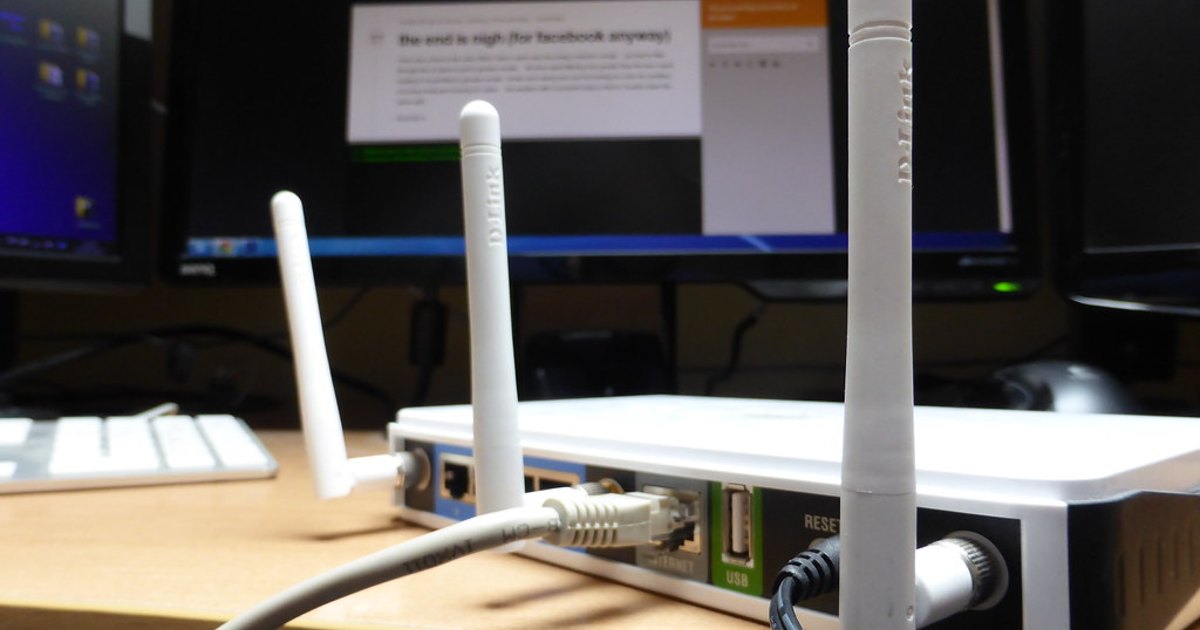
Featured image: wireless router by Sean MacEntee, licensed CC BY 2.0. Resized and cropped. Illustrative stock photo; no product testing is implied.