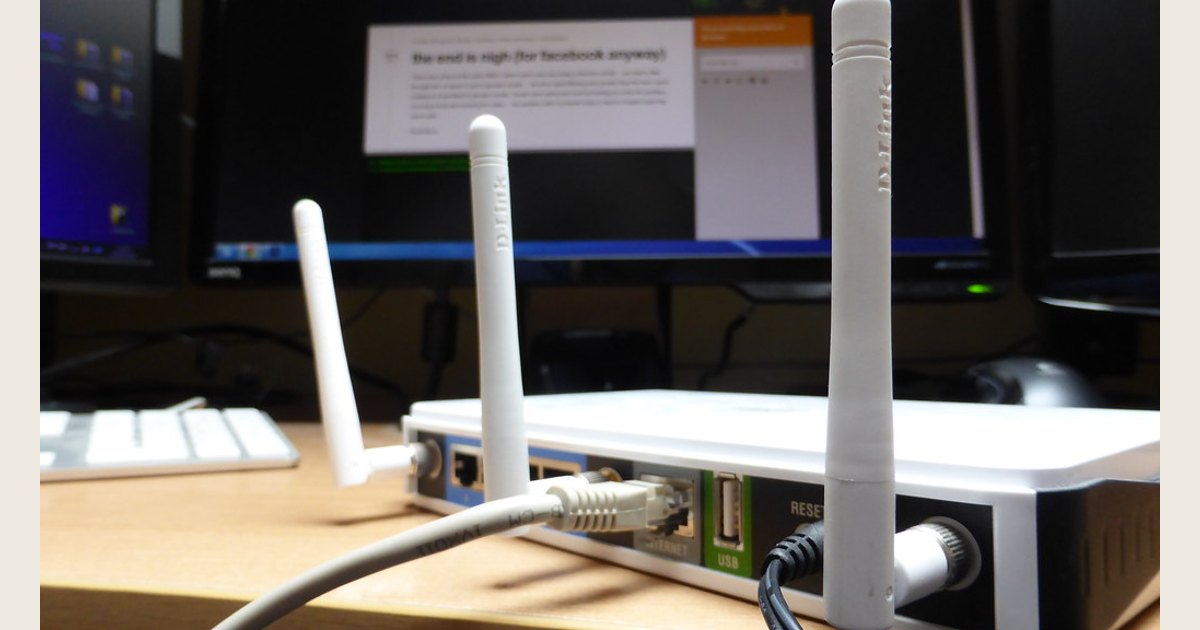
Cover image credit: Photo: wireless router by Sean MacEntee, https://www.flickr.com/photos/18090920@N07/9736658840; https://creativecommons.org/licenses/by/2.0/. Resized and padded. Illustrative stock photo; no product testing is implied.
Not always. You need a device that performs routing to make a typical home Wi-Fi network, but not necessarily a separate box. A provider gateway, 5G home-internet gateway, or hotspot may already do that. A separate router is useful when your equipment is only the service connection or you need better coverage or control.
Identify what your existing equipment does before adding anything. A router directs traffic between home devices and the internet and commonly assigns local addresses. Wi-Fi is the wireless connection your phone, TV, and laptop use to reach that network—not a synonym for the router itself. Google explains that a router assigns local IP addresses through DHCP and translates traffic between the home network and public internet address. Its setup documentation also shows a primary Wi-Fi router connected to an internet-ready modem. See Google’s Double NAT guide and Google Wifi setup guide.
TL;DR
- No—unless your setup lacks routing and Wi-Fi somewhere. A working provider gateway, cellular home-internet gateway, or hotspot may already handle both jobs.
- Add a separate router or mesh system when you only have a service handoff, need broader coverage, or need a feature your current equipment lacks.
- Do not add a second independent router by default. When it sits behind a gateway, use a provider-supported bridge or access-point arrangement when appropriate; two routing layers can create Double NAT issues for some uses. Google’s Double NAT guide
The quick decision
Use this as a starting point:
| What you have now | Do you need a separate router? | What to check |
|---|---|---|
| A standalone modem or fiber handoff with no working Wi-Fi | Usually yes | Connect a router’s internet/WAN port to it, subject to your provider’s requirements. |
| A provider gateway that already has Wi-Fi | Usually no | Try its Wi-Fi first; add equipment only for a specific problem or feature. |
| A cellular home-internet gateway or mobile hotspot with working Wi-Fi | Usually no | It is already creating a Wi-Fi network; decide whether its coverage and controls meet your needs. |
| A mesh Wi-Fi kit | Not normally a second router | The main mesh unit is generally the router; extra units extend that system. |
| An access point | Maybe | It adds Wi-Fi, but another device must still handle routing. |
Before buying, look at the box connected to the wall or fiber terminal. Does it have a network name you can join? Are your devices already online through it? Does its app or browser settings include Wi-Fi, connected devices, or network controls? If yes, you likely already have an all-in-one unit or another device doing the router work.
Router, modem, gateway, and ONT: the plain-English version
The names describe different jobs, although one box can perform several of them.
Router: runs the home network
A router connects your local network to the outside connection and directs data to the right place. In a typical home setup, it assigns local addresses and moves traffic between them and the public internet connection. Google explains that a router assigns local IP addresses through DHCP and performs network-address translation. Google’s Double NAT guide
Many routers also contain Wi-Fi radios and Ethernet ports. That is why “router” often means the whole Wi-Fi box. Routing and Wi-Fi remain separate functions: an access point can broadcast Wi-Fi while another device routes the network.
Modem or fiber handoff: brings service into the home
A modem is the service-facing equipment commonly used with cable or some DSL service. It connects to the provider’s network; by itself, it may not create a usable Wi-Fi network for several devices. Fiber service can have a separate fiber-to-home handoff instead of a cable modem. Treat the label as a clue, not a complete answer: the handoff may connect to a separate router, while provider equipment in another home may combine more functions.
A useful test is whether the device offers working Wi-Fi and router-style settings. Google’s setup instructions connect a primary Wi-Fi point’s WAN port to a working modem—the classic modem-plus-separate-router arrangement. Set up Google Wifi
Gateway: combines more than one job
A gateway often means a provider-supplied combined modem/router. It can receive the service, route the home network, and broadcast Wi-Fi in one unit. Google describes an ISP gateway as a modem-and-router combination that may already perform NAT. If yours works well, another router is optional. Google’s Double NAT troubleshooting guidance
Provider names differ, so do not decide from the logo alone. Check the device label, the provider app, or the support page for your exact service and equipment.
When a separate router is worth considering
A separate router can be useful when it solves a real problem.
Your current box has no Wi-Fi. A standalone modem or fiber handoff needs a router or Wi-Fi system downstream for a normal wireless home network.
Coverage is weak. Try moving the gateway into a more open, central location if possible. If that does not solve the dead spot, consider a mesh system or compatible access points. A mesh kit’s primary unit acts as the router; later units join as mesh points. Set up Google Wifi
You want features your gateway lacks. These might include more Ethernet ports, a guest network, or controls you prefer. Verify features before buying because they differ by model and mode.
You prefer your own Wi-Fi equipment. Confirm whether your provider requires its equipment or has a specific configuration for the service.
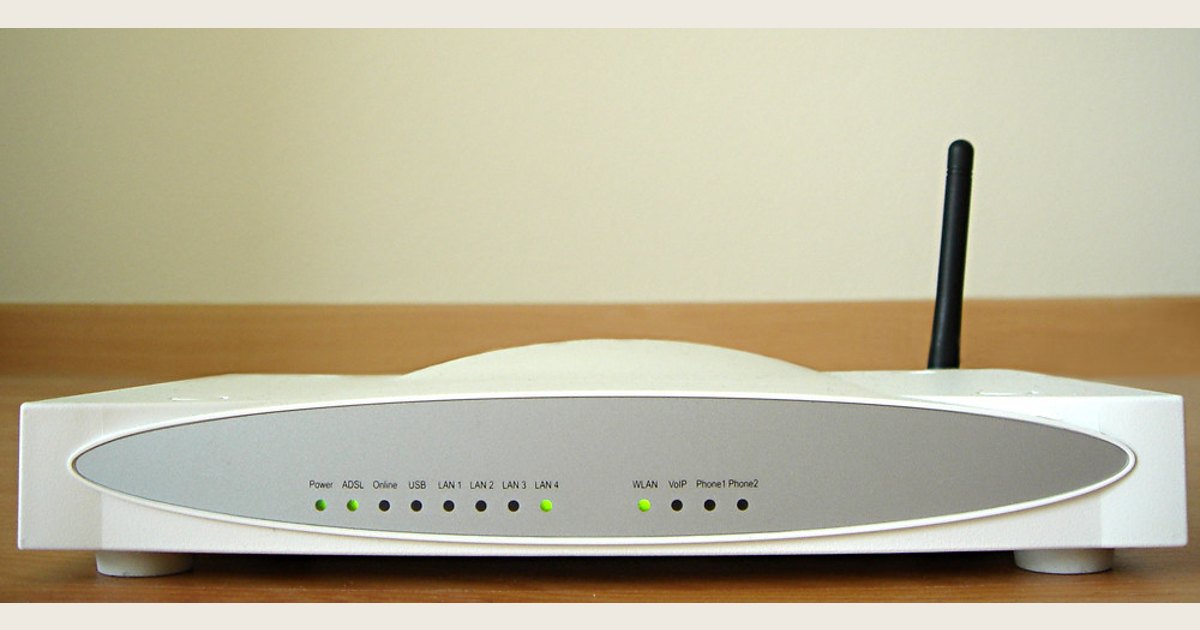
The pictured DSL gateway combines service-facing equipment with home-network functions. A separate router is a different setup; check what your provider supplies before buying another device. Illustrative image only; no product testing is implied.
Photo: Wireless Router by www.trek.today, https://www.flickr.com/photos/34107995@N00/442110600; https://creativecommons.org/licenses/by/2.0/. Resized and padded. Illustrative stock photo; no product testing is implied.
Avoid the common “two-router” mistake
Plugging a new router into a working provider gateway can create two devices managing the network, often called double NAT. It may go unnoticed for browsing and streaming, but can complicate device-to-device communication, port forwarding, UPnP, and some gaming. A computer and printer can have trouble finding each other if they land on separate private networks. Google’s explanation of Double NAT
Start with the provider-supported choices:
- Use the gateway alone if its Wi-Fi and features are sufficient.
- Put the gateway in bridge mode, if supported. The separate router then becomes the primary router. Google recommends this approach for its Wi-Fi devices when a combined ISP modem/router is upstream, but steps vary by provider and model. Google’s bridge-mode guidance
- Use the new device as an access point when its documentation supports that mode. It can add coverage while the gateway remains the router.
Bridge mode is not universal. It may turn off gateway features, and a multi-device mesh normally needs its primary unit in router mode. Google notes that its primary mesh point cannot be bridged because it manages mesh settings and communication. Google’s bridge-mode guidance
Setup checks before you spend money
Work through these checks in order:
- Identify the upstream box. Read its label: modem, gateway, router, or something else.
- Check whether Wi-Fi already works. Join it with a phone near the box, then check internet access.
- Map the connection. A separate router’s WAN/internet port normally connects to the upstream modem or gateway.
- Check provider equipment rules. Fiber, DSL, fixed wireless, and VLAN-based services may need special configuration; Google notes that VLAN tagging can require additional equipment.
- Choose one primary router. Decide which box will manage the network before changing settings.
- Save the old setup. Photograph cable connections and record the network name before switching hardware.
If you are choosing a router rather than troubleshooting one, Wi-Fi bands are only one part of the decision. Our guide to dual-band routers and 2.4 GHz versus 5 GHz explains when those bands may matter after you have settled the modem-versus-router question.
Troubleshooting: Wi-Fi exists, but internet does not
If your phone can join Wi-Fi but apps will not load, the problem may be upstream of Wi-Fi. Check whether the modem, ONT, gateway, or cellular device shows a service error; then use your provider’s outage and support resources. Restarting equipment can help with a temporary fault, but avoid factory-resetting a provider device unless the provider tells you to—doing so can erase service-specific configuration.
If the internet works near the gateway but not in a far room, test closer to the equipment first. A coverage problem calls for placement changes, a mesh expansion, or an access point; buying a second independent router is not automatically the right fix.
If a printer, smart-home device, or game console works on one network but not another, check for two separate Wi-Fi names or two routers. Consolidating to one primary router, using the provider-supported bridge mode, or configuring the second device as an access point can make the layout simpler.
The bottom line
You need routing and Wi-Fi capability somewhere, but not necessarily a standalone wireless router. Keep a working gateway, 5G home-internet device, or hotspot if it already gives your home the coverage and controls you need. Add a separate router or mesh system when the existing equipment is only a service handoff, has poor coverage, or lacks a feature that matters to you. The safest path is to identify the router already in your setup, then add equipment only with a clear role for it.