To back up a computer to an external hard drive, connect a drive with enough empty space, then use your computer’s built-in backup tool—or copy selected folders yourself. On a Mac, Time Machine is the straightforward choice. On Windows, File History is useful when available; a carefully organized manual copy is a dependable alternative for your personal files.
This guide is for anyone protecting everyday files such as family photos, schoolwork, tax documents, or a large project before a computer problem turns into a data problem. The most important part comes after the copy finishes: open the drive and restore or open a few files. A backup drive is like a spare house key—it helps only if you can use it when you need it.
Key Takeaways
- Connect an external drive with more free space than the files you plan to protect, and do not erase a drive until you know its existing contents are expendable.
- On a Mac, add the drive in Time Machine settings. On Windows, look for File History; if it is unavailable or too limited for your needs, copy your important folders manually.
- Verify the backup by opening files from the external drive and, when practical, restoring one to a temporary location.
- Disconnect and store the drive safely after a backup. CISA recommends keeping offline backup copies and testing their availability and integrity regularly.
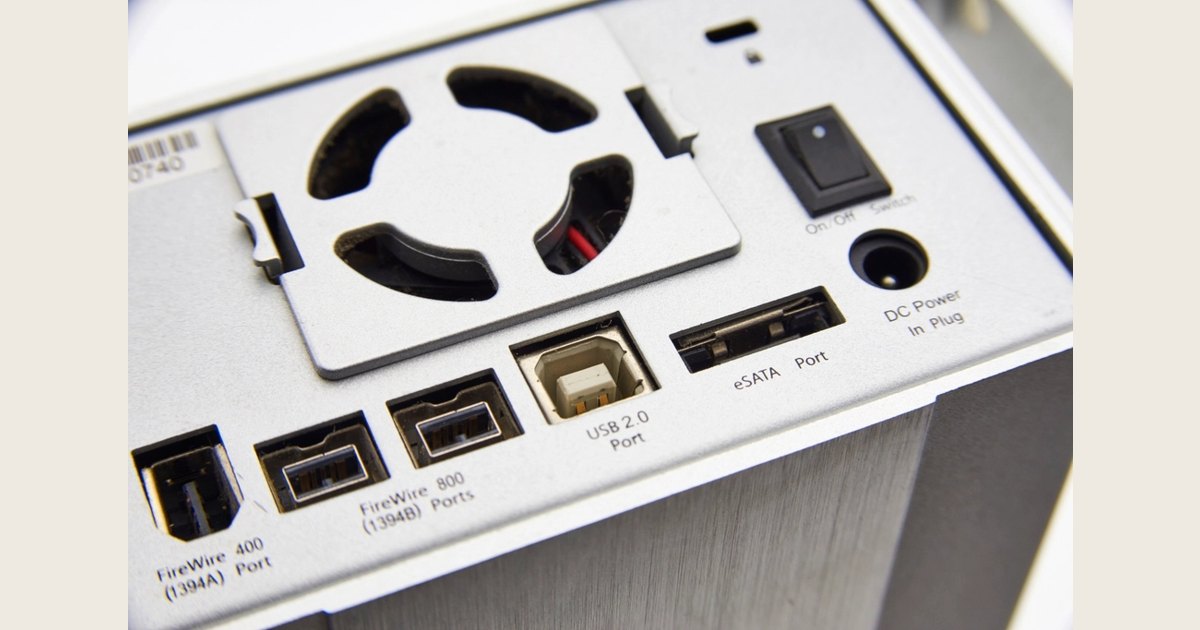
Featured image credit: Photo: External Hard Drive by creator not listed, Rawpixel image; CC0 1.0. Resized and padded. Illustrative stock photo; no product testing is implied.

Before you start: choose what the backup should protect
Protect the files that would hurt to lose: personal documents, photos, videos, creative projects, tax records, and folders where apps save work locally. For a desktop email app or a password manager with a local vault, also check the app’s own export or backup option.
Before connecting the drive, confirm:
- Space: The drive has room for the files you plan to copy and, for automatic backups, future versions.
- Connection: You have a working USB cable; a desktop-style drive may also need its power adapter.
- Time: Leave the computer on for the first backup, and do not unplug the drive while it runs.
- Existing files: Inspect a used drive before accepting an erase or format prompt.
Treat an external drive as one destination, not the only place a file exists. CISA advises maintaining offline, encrypted backups of critical data and regularly testing their availability and integrity (CISA #StopRansomware Guide). For irreplaceable files, keep the original, the external-drive copy, and consider another independent copy.
Automatic tools preserve versions over time; a manual copy is easier to browse. Neither helps unless it includes the files you care about.
Step 1: connect the drive and inspect it first
By the end of this step, you should know that the drive is powered, visible to your computer, and safe to use.
- Connect the external drive directly to your computer and turn it on if it has a power switch.
- Wait for it to appear. On Windows, check File Explorer under This PC. On a Mac, look in the Finder sidebar under Locations.
- Open the drive and look at its contents. If it already holds files, decide whether they must be kept before you use it for backups.
- Give the drive an obvious name if you can, such as
Computer Backup. A clear name makes it less likely that you will select the wrong disk later.
If the drive does not appear, try another cable or USB port and check a desktop drive’s power supply. Pause before initializing, formatting, or erasing a disk: those actions can remove existing data.

Illustrative external drive on a desk; this photo does not show the cable connection. Check the drive and computer ports before choosing a cable. Photo: External hard drive connected laptop by Markus Spiske, Rawpixel image; CC0 1.0. Resized and padded. Illustrative stock photo; no product testing is implied.

Step 2: back up a Windows computer
Use File History when it is available and covers the folders you need. Microsoft says it backs up Windows libraries—including Documents, Pictures, Videos, Music, and custom libraries—to an external drive or network location, and can restore earlier versions (Microsoft Support). A manual folder copy gives you direct control.
Option A: use File History when it is available
- Connect the external drive.
- In Control Panel, open System and Security, then select Save backup copies of your files with File History.
- Select Turn on. If Windows has not selected the external drive, choose Select drive, select it, and choose OK.
- File History automatically covers standard libraries such as Documents, Pictures, Videos, and Desktop. For a folder stored elsewhere, right-click it, choose Show more options, then Include in library—or use the manual method below as well.
- Leave the drive connected long enough for the initial copy to finish. File History continues making regular backups while its destination is available (Microsoft Support).
Why choose this option? Use File History for earlier versions of frequently changed files. Prefer a manual copy for a straightforward dated snapshot, or include any important outside folders in a library.
Windows controls can vary by edition and update. If File History is unavailable, use the manual-copy option rather than an unfamiliar recovery or reset feature.
Option B: make a manual backup of your important folders
Choose this when you want a clear, browseable copy.
- On the external drive, create a folder named with the computer and date, such as
Jordan-Laptop Backup 2026-09-23. - In File Explorer, copy the folders you chose earlier—such as Documents, Pictures, Desktop, and project folders—into that backup folder. Copy rather than move so the originals remain on the computer.
- Wait for each transfer to complete. If Windows reports files it cannot copy, note their names rather than clicking through blindly.
- Repeat the process later into a new dated folder, or replace an older copy only after checking that the new one is complete.
A manual copy does not automatically preserve every application setting, system component, or old file version. Its advantage is clarity: you can browse the drive and see what was saved. Because it reflects only that moment, include a date in the folder name.
Step 3: set up Time Machine on a Mac
Time Machine is the built-in Mac option for regular backups to an external disk. Once turned on, it makes hourly, daily, and weekly backups (Apple Support).
- Connect the external drive to the Mac and turn it on.
- If a prompt appears asking whether to use the disk for Time Machine, choose Options, then Set Up. If no prompt appears, open Time Machine Settings from the menu-bar Time Machine icon, or open System Settings and search for Time Machine.
- Select Add Backup Disk (or the add button if another disk is already configured), then select the external drive.
- Follow the on-screen choices. If macOS says the disk must be erased or reformatted, stop and confirm that nothing important remains only on that disk.
- Let the first backup finish. Later backups run automatically while the configured backup disk is available.
What Time Machine covers: Apple says it backs up files outside the macOS installation, including apps, music, photos, and documents. It does not back up system files or apps installed during macOS installation (Apple Support). Check that irreplaceable files appear in the backup.
Time Machine can also save local snapshots on an APFS-formatted Mac while the backup disk is not attached. Apple recommends using a backup location separate from the internal disk, so you have a copy if something happens to the Mac or its storage (Apple Support). Local snapshots are helpful, but they are not a replacement for the external drive.
Step 4: verify that you can actually use the backup
You should be able to locate and open real files from the backup before calling the job finished. Verification is what separates a useful backup from a completed progress bar.
For a manual Windows backup, open the dated backup folder and check a recent document, a photo, and a project file. For a stronger check, copy an unimportant file from the drive to a temporary computer folder and open it.
For File History or Time Machine, browse to a known file in the restore view and confirm it appears. When available, restore a test file to a separate location rather than overwriting the current copy.
CISA calls for testing backup availability, integrity, and restoration procedures (CISA). Opening files and doing a small test restore is a practical home-computer version of that advice.
Step 5: eject, disconnect, and make the routine realistic
When the backup and spot-checks are complete, safely eject the drive before unplugging it. On Windows, use Eject; on a Mac, use the eject button next to the drive in Finder.
Store the drive where it will not be dropped or overheated. Leaving it attached is convenient for automatic backups, but it can also be affected by computer mistakes, hardware trouble, or malware. A reasonable compromise is to connect it for planned backups, check it, then disconnect it; keep another independent copy if you leave it attached.
After a meaningful change—such as importing photos or finishing a project—run the backup and check one file. Pick a schedule you can follow; the important part is noticing changes that have not yet been copied.
Common problems and what to do
| Problem | What to check first |
|---|---|
| The drive does not appear | Try a different cable or USB port; check its power supply; then test the drive on another computer if possible. |
| The drive is nearly full | Identify the largest folders, remove only backups you have confirmed are obsolete, or use a larger dedicated backup drive. Do not delete the only copy of a file. |
| The backup tool wants to erase the drive | Stop and inspect the drive. Copy off anything you need before allowing an erase. |
| A folder is missing from the backup | Check whether File History or Time Machine includes it; use a manual copy for folders stored outside their usual locations. |
| Files will not open from the backup | Keep the drive connected, record the error, and try copying a different known file. Do not delete the backup while investigating. |
A backup that is easy to restore is the goal
Back up a Windows PC with File History when it fits your folders, or make a labeled manual copy when you want simple control. On a Mac, add the external drive to Time Machine and allow the first backup to finish. In either case, inspect the drive and open or restore a few files afterward.
The real benefit is not merely having a drive full of data. It is knowing which files are protected, where to find them, and that you can get them back when you need them.