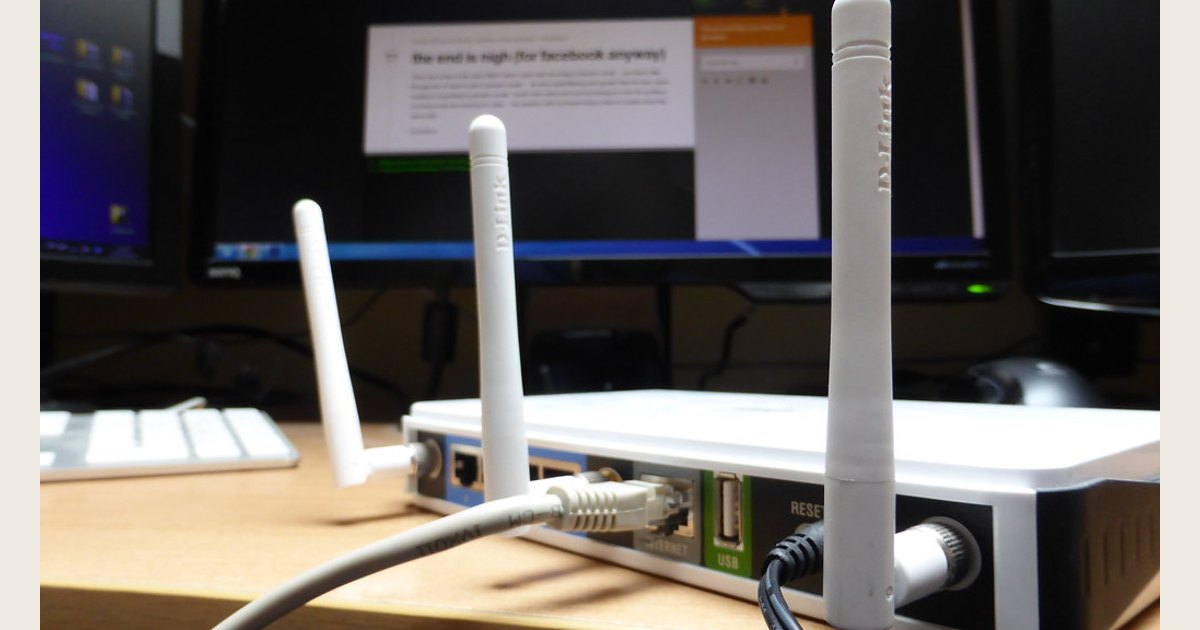
If your Wi-Fi is connected but pages will not load, several devices have dropped off the network, or your router seems stuck, restart the router before changing settings. For a typical standalone router, unplug its power cable, leave it off briefly, plug it back in, and wait for it to finish starting. That is a restart (also called a reboot or power cycle). It should not erase your Wi-Fi name, password, or other saved settings.
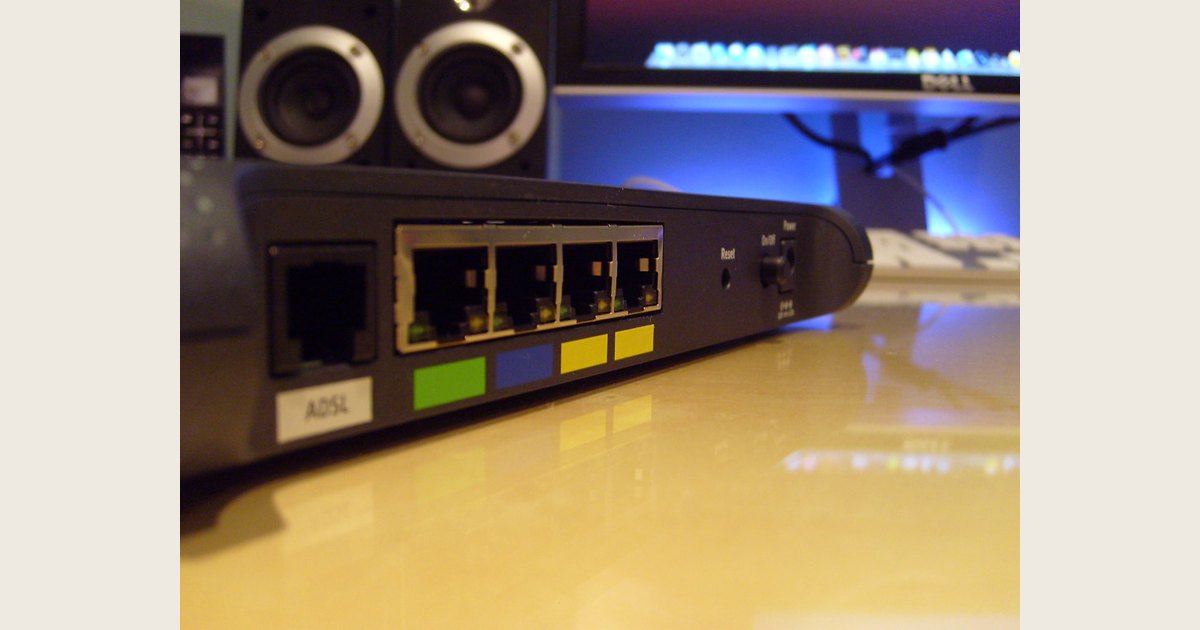
Do not press the recessed button labeled Reset for a routine connection problem. On many routers, it triggers a factory reset—not a restart—and erases saved settings, so you may need to set up the network again.
Key takeaways
- Start with a normal restart, not a factory reset. Restarting is the low-consequence troubleshooting step.
- If you have a separate modem and router, identify both before unplugging anything. A combination modem-router or gateway is one device.
- Let equipment fully power down and fully start up. Exact timing varies by manufacturer and provider: Google’s Wi-Fi guidance uses 10–20 seconds off and 1–2 minutes to start, while its modem guidance calls for 2–3 minutes with all modem lights off. Follow your equipment maker or internet provider if it specifies something different.
- Check whether the problem affects one device, your whole Wi-Fi network, or the internet connection itself before assuming the router is at fault.
- Save factory reset for a deliberate fresh setup or when your manufacturer’s support instructions call for it.
Before you restart: identify what you have
Your provider-facing equipment depends on your installation: cable or phone service may use a modem, while fiber service may use an optical network terminal (ONT). A provider-supplied gateway can combine provider-connection and router functions; a separate router manages home Wi-Fi, and a mesh system adds satellite points. Check equipment labels or your provider’s instructions to identify each unit before restarting it.
Restarting only the router cannot correct a provider outage or a modem that has lost its connection. Google notes that modem trouble affects downstream equipment and advises contacting the ISP if problems persist. Its modem-restart instructions explain the provider-facing step.
Before powering anything off, try a second website and a second device. If every device is offline, check your provider’s outage page using cellular data when possible; a restart cannot repair an outage.
How to restart a wireless router
1. Save work and avoid Reset
A restart disconnects every device for a few minutes. Pause calls or downloads and locate the router’s normal power switch or adapter before starting.
2. Turn off the router
Use its normal power switch or unplug its adapter. Google’s Nest Wifi and Google Wifi instructions likewise use the power cable. If the router is on a battery backup, turn the router off or disconnect it from a powered outlet on the backup; unplugging the backup itself may not turn it off.
3. Let it fully power down
Wait for the lights to go out. There is no universal interval: Google tells owners of its Wi-Fi devices to wait 10–20 seconds. Google’s restart guide is a product-specific benchmark; follow your model’s directions.
4. Restore power and wait
Reconnect power or turn the router on. Google advises 1–2 minutes for its devices to fully start. Other routers can use different light patterns or take longer, so do not repeatedly cut power during startup.
When normal power and internet lights settle, reconnect a phone or computer. For mesh, let the main router come online before judging satellite points.
5. Test the connection
Open unrelated sites or the app that was failing, then test another device. If only one device fails, its Wi-Fi settings are a more likely place to troubleshoot. If coverage remains weak, a restart will not change room layout or radio range; our guide to dual-band routers and Wi-Fi bands can help explain how devices reconnect.
If you have a separate modem and router
If you have a gateway, restart that one unit according to your provider’s directions. For example, Xfinity says to unplug a modem or gateway, wait one minute, and reconnect it in its internet and Wi-Fi troubleshooting.
With separate equipment, restart the router first when Wi-Fi seems stuck but the modem appears connected. Restart the modem too if its internet light is out, every device remains offline, or your provider directs it.
Google’s modem steps say to unplug power and Ethernet, remove a backup battery if present, wait 2–3 minutes until all lights are off, reconnect, and wait for a solid internet light. Contact the ISP if the issue remains. Follow product-specific directions where they differ, especially for fiber equipment.
Once the modem regains its connection, make sure the router has power and allow it to reconnect. Do not judge a blinking status light as failure immediately.
Restart versus factory reset: choose the right action
| Action | What it does | Use it when | What to expect afterward |
|---|---|---|---|
| Restart / reboot | Turns the device off and back on | Wi-Fi or internet behavior seems temporarily stuck | The existing network name and settings normally remain in place |
| Factory reset | Returns the router to its factory-default state | You are deliberately starting over, returning/transferring the device, or following manufacturer support directions | You must set up the network again and reconnect devices |
Think of a restart as turning the device off and on again; a factory reset is more like erasing its saved setup before starting over. The second action is not a shortcut when the first one does not immediately fix a connection.
A factory reset is not a stronger version of a restart. It is a configuration-erasing action. Google says that factory-resetting its Wi-Fi devices erases current settings and data, and that deleted data is gone forever. It recommends noting the network name, password, and custom settings first. Those examples include guest-network settings, port forwarding, WAN settings, family rules, and custom device names.
Reset behavior depends on the brand and method. In Google’s ecosystem, an app-based reset can also remove devices from the Google Account and erase associated app and cloud data, while a hardware-button reset treats some cloud data differently. Use instructions for your exact router—not a generic “hold reset for 10 seconds” tip.
Before a planned reset, record your preferred network name and password plus any settings you rely on, such as port forwards, guest access, or parental controls. Keep ISP activation details if your service needs them.
When a restart does not solve the problem
Use the result of the restart to narrow down the next move rather than rebooting repeatedly.
Only one device cannot connect
Restart that device, confirm it is joining your home network rather than a public hotspot, and check its saved password. Forget and rejoin the network if its name or password changed. Do not reset the router solely for one device.
Wi-Fi works, but the internet does not
Check the modem or gateway’s internet light and a provider outage page. Confirm cables are secure. If both devices have been restarted and the indicator does not return to normal, contact the provider. Xfinity similarly directs customers to troubleshooting tools and support when a problem cannot be fixed online.
The signal is weak in one area
A restart does not overcome walls, distance, interference, or poor placement. Compare results close to the router and check whether it is enclosed. Coverage may need a different placement or mesh point.
The router will not power on
Check the outlet, switch, adapter connection, and any surge protector or battery backup. If it remains unresponsive, follow manufacturer support instructions. A factory reset cannot fix a failed adapter or hardware fault.
Choose the next step
- The restart restored service: Stop troubleshooting and check that your usual devices reconnect.
- Only one device still fails: Continue on that device; do not change the whole network.
- All devices are offline: Check for a provider outage and the modem or gateway’s status lights; contact the ISP if its connection does not return.
- Only one area has weak Wi-Fi: Compare placement and coverage before changing router settings.
- The router has no power or the fault persists: Contact the router maker or ISP with the model and light behavior. Factory-reset only if support for that exact model recommends it.
Image credit
Featured image: wireless router by Sean MacEntee, CC BY 2.0. Resized and padded. Illustrative stock photo; no product testing is implied.