If an Anker power bank won’t recharge, first confirm the correct input port for its exact model. Then try one compatible wall adapter, a known-good cable and a working outlet. If the bank is too hot or cold, let it return naturally to room temperature. Stop if it is swollen, leaking, unusually hot or otherwise damaged; don’t open it to troubleshoot. These checks are for a power bank that won’t take a charge—not a phone that charges slowly.
Key Takeaways
- Check the label and manual for your exact model to confirm which port accepts input.
- Test the power source, adapter and cable one at a time; a bank that can charge a phone may still have an input-side problem.
- Stop using a bank that shows signs of battery damage or abnormal heat, and contact Anker or a local battery-recycling resource.
Featured image credit: Towfiqu barbhuiya on Pexels (source image); used under the Pexels license. Resized and padded. Illustrative stock photo; it does not depict an Anker product or product test.
Before troubleshooting, rule out a safety problem
Do not keep testing a power bank that has a changed shape, leaking, an unusual odor or noise, discoloration, or more heat than normal. The U.S. Fire Administration says to stop using lithium-ion batteries when these warning signs appear, and advises recycling them locally rather than putting them in the trash (Battery Fire Safety, accessed November 8, 2026). Keep the unit unplugged and ask Anker or a local battery-recycling facility how to handle it; don’t pry open the case or try to replace a cell.
Temperature can also prevent a safe test. The USFA says to store lithium-ion batteries at room temperature when possible and not to charge them below 32°F (0°C) or above 105°F (40°C). These are broad safety limits, not a substitute for a model’s operating instructions. If the bank was left in a cold car or a hot room, disconnect it and let it return to room temperature naturally. Don’t use a heater, hair dryer or refrigerator to speed that up.
Step 1: Find the input port for your exact model
A power bank can have ports for sending power out, taking power in, or both. A USB-C-shaped connector alone doesn’t tell you which role a particular port supports. If the bank still charges a phone, that shows its output works; it doesn’t prove the input path can recharge the bank.
Find the model name or SKU on the bank or its packaging, then check its port labels and instructions. Anker’s support page has a Documents & Drivers search by product name or SKU, and Anker product pages link to its e-Manual download portal. If a manual or label is unclear, ask Anker support rather than guessing from a diagram for a different model.
For example, Anker’s product page for the 737 Power Bank (PowerCore 24K) identifies USB-C1 as the input on that model, which has two USB-C ports and one USB-A port. This is an example, not a rule for every Anker power bank. For a quick explanation of the difference between power-bank input and output, see our guide to what a power bank is and how it works.
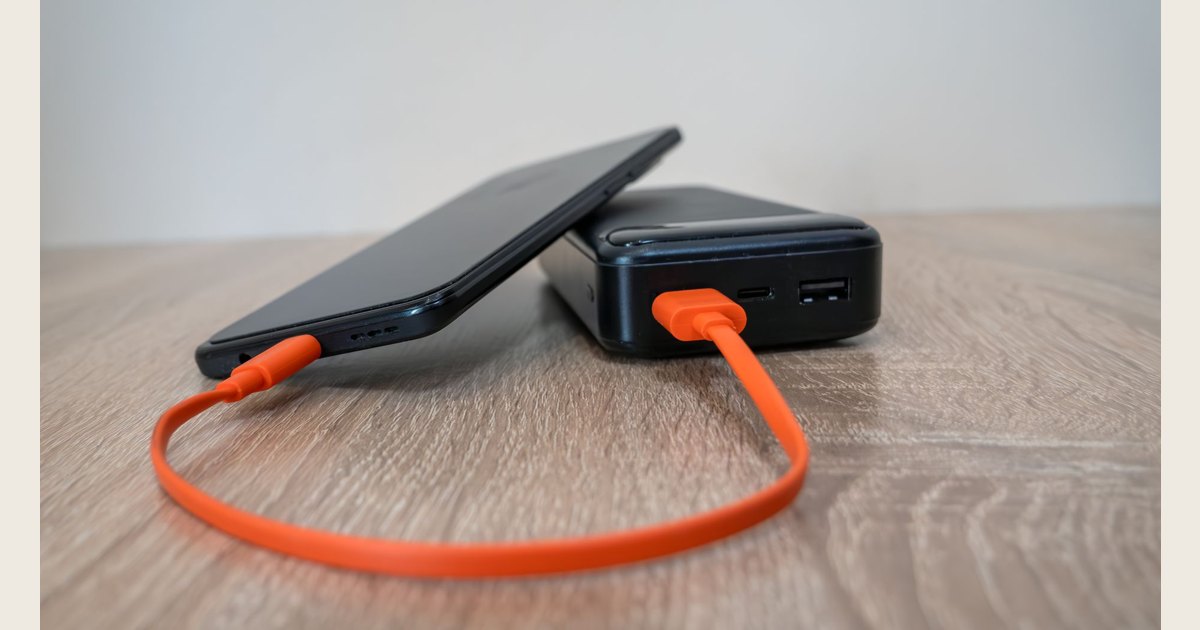
The photo shows a generic bank connected to a phone (bank output → phone). Recharging the bank uses the opposite path: compatible wall adapter → the bank’s documented input. The image does not show that input-side setup or identify the pictured ports; check your own labels and manual. Photo: Eleonora Vokueva on Pexels (source image); used under the Pexels license. Resized and padded; illustrative stock, not a product test.

Step 2: Simplify the charging setup
Remove other devices and accessories, then connect the model’s input port to a compatible wall adapter and working outlet. A direct wall setup rules out variables such as a laptop, car port, dock or hub.
Use the charger type and input limits specified for your model. Don’t assume that chargers, cables or ports are interchangeable, and don’t force a connector. Disconnect other devices from a multiport adapter; check the outlet with a separate device if needed.
Check the manual for the charging light or display meaning; indicator patterns aren’t universal across Anker models. Use a button only as the model’s instructions direct, and don’t try undocumented combinations.
Step 3: Swap one part at a time
Change one item at a time to identify a faulty cable, adapter or outlet.
- Check the cable for fraying, a bent plug or a loose connector. Set aside damaged cables.
- Keep the same compatible adapter and outlet, but try a second cable known to work with a similar charging setup.
- If there is still no response, keep the known-good cable and try a different compatible adapter.
- If needed, test the outlet with a separate device or try another working outlet.
Use only cables and adapters allowed by your model’s manual; a connector that fits may still be unsuitable. Replace a cable if that fixes the problem. If the port feels loose or charging stops when the plug moves, stop and contact support rather than forcing the connection.
Step 4: Check temperature and the port without opening the bank
If the unit is very cold or hot from its surroundings, unplug it and let it settle at room temperature before trying again. The USFA’s lithium-ion guidance says not to charge below 32°F (0°C) or above 105°F (40°C), but your model’s manual may be more restrictive. Don’t place a power bank in direct sunlight or on a heater to warm it.
With the bank disconnected, look at the input port in good light. Check for visible debris, moisture, corrosion, a bent connector or other damage. Don’t insert metal objects, liquid or tools into the port, and don’t open the case. If the port is wet, visibly damaged or loose, skip further charging attempts and contact Anker. If nothing looks wrong, retry only after confirming the temperature and using the known-good setup from Step 3.
Step 5: Read the indicator using the model manual
A blank display or a blinking light isn’t enough on its own to diagnose the cause. Check the exact model’s manual for what the indicator means while the bank is connected to input power. Don’t assume an indicator pattern or button sequence applies across Anker models, and don’t try an undocumented reset.
If the manual doesn’t explain what you see, record whether the light or display turns on, which adapter and cable you used, and whether the bank was unusually hot or cold. Share those observations and the model or SKU with Anker support rather than guessing at a reset.
Quick diagnosis by symptom
| What you notice | What to check next |
|---|---|
| No light or display | Confirm the model’s input port, outlet and compatible adapter; try one known-good cable and check the manual’s indicator instructions. |
| The bank charges a phone but won’t recharge | Treat input and output as separate checks. Verify the input port and test the wall-charging setup; output working does not confirm input is working. |
| Charging stops when the plug moves | Try a different undamaged cable once. If the bank’s port is loose or movement still interrupts charging, stop and contact support rather than holding the plug in place. |
| The bank was left in a hot or cold place | Unplug it and let it return to room temperature naturally. Follow the model manual and the USFA’s general lithium-ion temperature guidance before trying again. |
| Several known-good setups produce no documented charging indication | Stop repeating the same test. Record the model and what you tried, then contact Anker support. |
The table narrows down the next check; it can’t confirm that a battery or internal charging circuit has failed. Avoid reading more into a light pattern than your model’s instructions support.
When to stop and contact Anker
If the correct input port, compatible wall adapter, known-good cable and working outlet still produce no charging indication, the problem may be inside the bank. A user can’t reliably distinguish a damaged port, battery or charging electronics without model-specific service guidance. Don’t open the case, bypass a protection feature or probe the battery. Use Anker’s official support page to ask about the next step, and give them the exact model or SKU, what the indicator did, and which cables and adapters you tried.
If the bank shows a warning sign such as swelling, leakage, unusual heat, odor or noise, stop using it rather than sending it through another charge cycle. The USFA advises stopping use for these lithium-ion battery warning signs and recycling locally, not in household trash (Battery Fire Safety). Ask Anker or the local recycling program how to handle the specific unit.
Frequently asked questions
Is USB-C always the input on an Anker power bank?
No. Check the exact model’s label or manual. The Anker 737 Power Bank (PowerCore 24K), for example, lists USB-C1 as input, but that model-specific detail should not be applied to other banks (Anker product specifications).
Should I reset the power bank if it won’t recharge?
Don’t try a generic reset or button sequence. Check the exact model’s manual for documented controls; if it does not describe a reset for this problem, confirm the input port, outlet, adapter and cable, then contact Anker support with your observations.
Can I keep using a power bank that feels hot?
If it is unusually hot—or also swollen, leaking, discolored, making odd noises or giving off an odor—stop using it and don’t recharge it. The USFA lists these as warning signs for lithium-ion batteries; contact Anker and ask a local battery-recycling facility about safe handling.
The short version
Check the exact model’s input marking first, then test a compatible wall adapter, cable and outlet one at a time. Let a bank that is simply too hot or cold return naturally to room temperature, but stop if it shows signs of damage or abnormal heat. If a known-good setup still won’t recharge it, share your model number and test results with Anker support instead of opening the bank.